Transparent presenter export

Create a Transparent Background AI Presenter

Create a transparent AI presenter layer. Compare MOV ProRes 4444 and WebM, follow the export steps, and watch a finished overlay example.

Transparent AI presenter overlay video video poster
Transparent presenter

Published example

39 sec · 16:9 · US English male voice

Transparent AI presenter overlay video

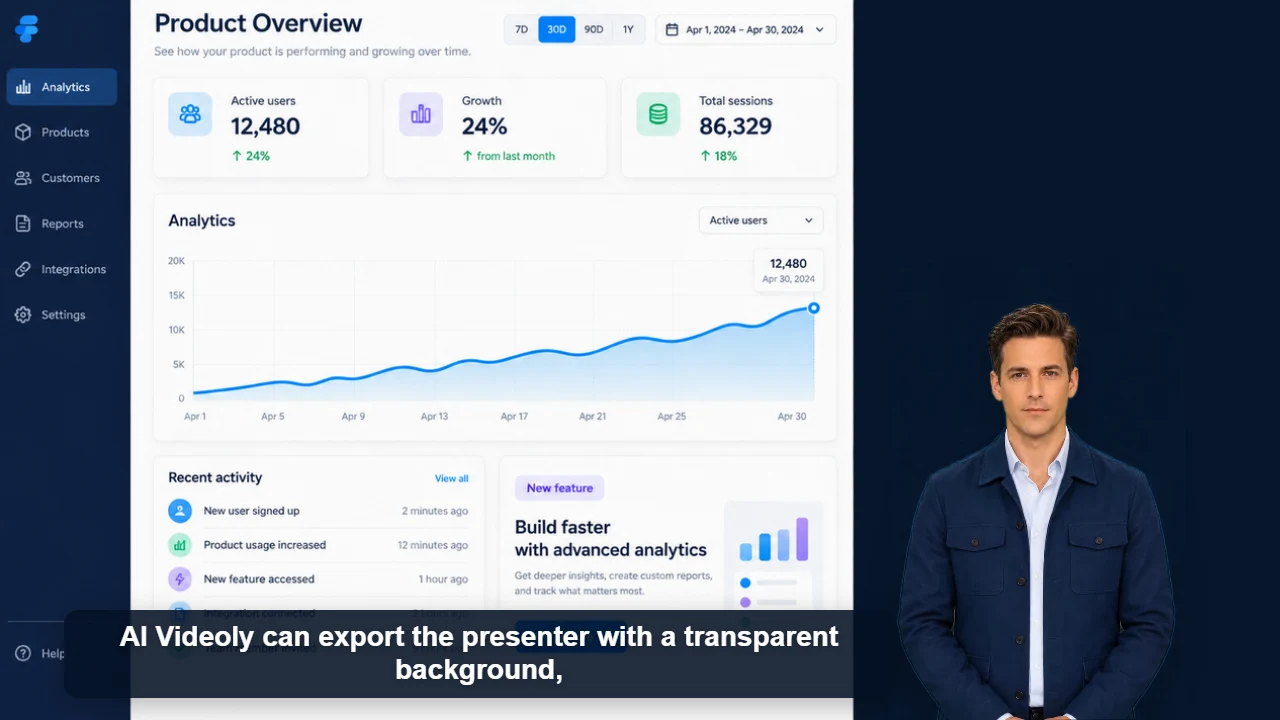
Watch James demonstrate a reusable transparent presenter layer across product demos, tutorials, editing timelines, and livestream layouts.

Watch video and view script

Generate narration, lip sync and presenter animation, then export a transparent MOV or WebM layer. Place it over product footage, screen recordings, slides or branded backgrounds in software that supports the chosen format.

Transparent MOV vs WebM: choose a format and export

A transparent presenter layer serves a different purpose from a finished video with a background. These steps follow the AI Videoly editor; format support varies by software, so test a short clip first.

Formats and workflow requirements
FormatUse caseExport and compatibility
MOV · ProRes 4444Editing with a transparent presenter layerLarger files; upload and conversion follow recording. Keep the page open. Test a short clip in your target editor to verify alpha support.
WebMWeb or video workflows supporting transparent WebMTypically smaller files. A black player background alone does not show whether alpha was preserved; test the layer over a colored background.
  1. 1. Generate a short test

    Choose a presenter and voice. Generate two or three sentences and check pronunciation, lip sync and captions.

  2. 2. Enable transparency

    Enable transparent background in the editor and check size, position and aspect ratio. Turn captions off for a presenter-only layer; enabled captions are retained in transparent exports.

  3. 3. Select the download format

    Choose MOV or WebM when downloading. Browser export plays and records the video, so keep it in the foreground. MOV also needs upload and conversion.

  4. 4. Check and overlay

    Place the presenter above your background in the target software. Verify transparency, audio, captions and duration before producing the full project.

If MOV conversion does not complete and the editor offers Download prepared WebM, save that file and check support in your target software.

Watch the transparent presenter example and production details

Transparent MOV and WebM

Export a presenter layer without a baked-in background. Choose the format your editing or web workflow supports.

Movable and resizable

Set the character scale and position before export or refine the placement in your editor.

Original commercial-use characters

Characters featured in videos generated and downloaded from AI Videoly are original designs and available for commercial use.

Workflow

Create the video in four steps

1

Choose a presenter

Select a character that fits your subject and audience.

2

Add the script and voice

Generate the narration and synchronized presenter performance.

3

Enable transparent background

Check presenter placement and captions, then choose transparent MOV or WebM when downloading.

4

Add it to your project

Test the exported layer over a background in software that supports its transparency format.

Content you can create

OBS livestream scenes
Product footage overlays
Software tutorials
Slide presentations
Reaction videos
Reusable branded layouts

Frequently asked questions

Which export formats support a transparent presenter?

AI Videoly offers transparent MOV ProRes 4444 and WebM. MOV needs additional upload and conversion time. Test the downloaded layer in your target software before producing a full project.

Can I use a normal background instead?

Yes. Upload an image or video and export the complete composition when you do not need a separate transparent layer.

Can the presenter be used commercially?

AI Videoly's original character images featured in generated and downloaded videos are available for commercial use. Your uploaded materials must still be content you have permission to use.