Training and tutorial videos

Free AI Training Video Generator

Create AI training videos with your screen recordings. Adapt software lesson and process handoff scripts, follow a scene plan, and watch an onboarding example.

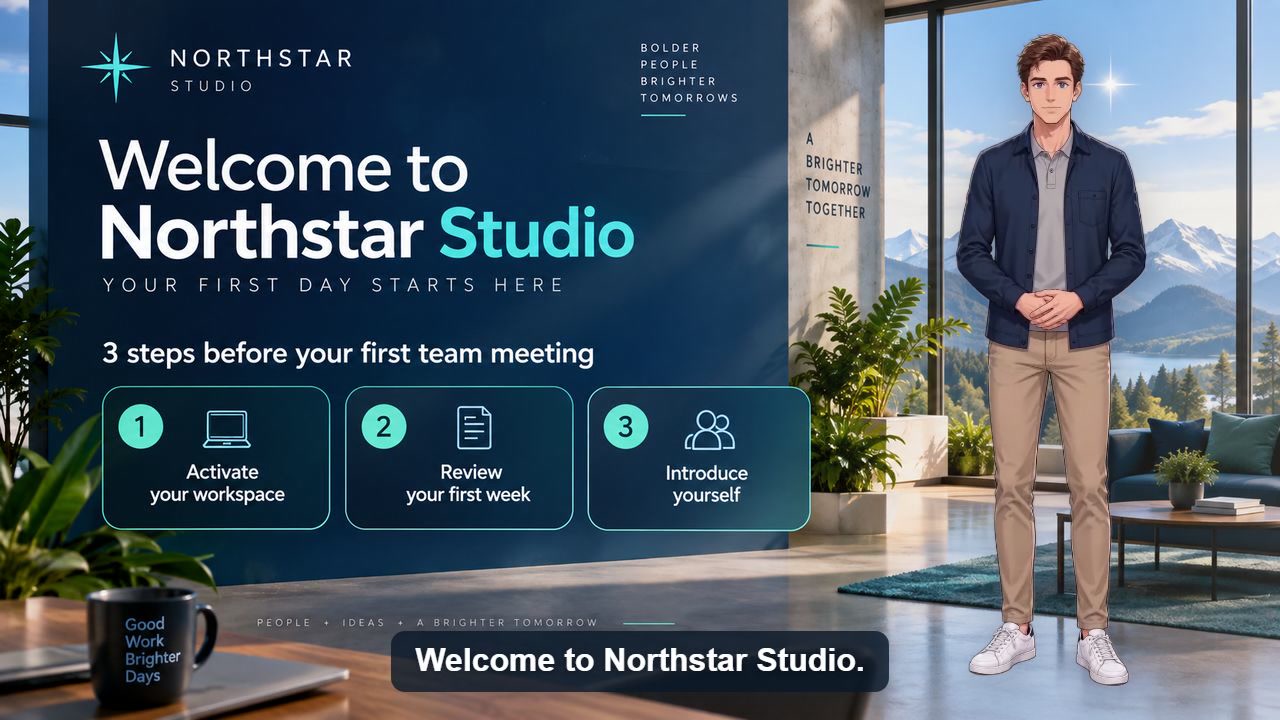
Employee onboarding video with an AI presenter video poster
Employee onboarding

Published example

40 sec · 16:9 · US English male voice

Employee onboarding video with an AI presenter

Watch a reusable first-day onboarding video covering account activation, the first-week checklist, team introductions, and employee help.

Watch video and view script

Training content changes whenever a process, product, or policy changes. A reusable AI presenter makes updates easier: edit the relevant script, keep the established voice and layout, and publish a revised lesson without scheduling another recording session.

Turn one training objective into a short lesson

Employee training script template

By the end of this lesson, you will be able to [one task]. First, open [tool or resource]. Next, complete [specific action]. Check that [observable result] appears. If you need help, contact [approved support channel]. Before continuing, practice [the task] once.

Use approved company instructions and demonstration accounts. This is a draft teaching structure, not verified safety, legal or compliance advice; have the responsible person review those lessons.

Match narration to the scene plan
PartTeaching goalWhat to show
ObjectiveState one skill the viewer will practiceA lesson title with the expected result
DemonstrationExplain one action at a timeA recording or diagram matching each action
CheckExplain how to recognize successThe correct result and a common mistake
PracticeAsk the viewer to repeat the taskA practice prompt and approved help channel

Before publishing

  • Confirm one measurable learning objective
  • Remove private employee information from visuals
  • Verify instructions with the process owner
  • Check captions for names and technical terms

Editable scripts for specific tasks

These are script starters: replace the placeholders and prepare your own visuals. The button loads the script, presenter template and aspect ratio. Set the background, voice and caption style in the editor.

Software operation lesson · 16:9

In this lesson, you will learn to [one task]. Sign in to [training tool] with your demonstration account. Open [menu], select [option] and enter [sample value]. Click [button] and check that [success indicator] appears. A common mistake is [mistake]; correct it by [fix]. Now repeat the steps with [practice example].

Visuals to prepare: Show each action as it is narrated, then show the success indicator and practice prompt. Use sample data and check technical terms in the voice and captions.

Process and handoff instruction · 16:9

Before handing off [task], complete these checks. First, confirm [required information]. Next, save [deliverable] in [approved location]. Then notify [responsible role] through [team channel]. The handoff is complete when [confirmation] is recorded. If information is missing, contact [support role] before continuing.

Visuals to prepare: Prepare the approved checklist, a sample deliverable and the confirmation screen. Have the process owner verify the steps and contact details before publishing.

Repeatable lessons

Use the same presenter and visual structure across a course, onboarding sequence, or knowledge base.

Visual context

Place the presenter over diagrams, slides, screen recordings, or step-by-step images.

Accessible review

Automatic captions help viewers follow terminology and revisit individual steps.

Workflow

Create the video in four steps

1

Define one learning objective

Keep each video focused on a result the viewer can demonstrate.

2

Break the procedure into steps

Use one action per sentence and explain unfamiliar terms.

3

Match visuals to narration

Show the exact screen, diagram, or example being discussed.

4

Review for accuracy

Have a subject-matter owner verify the final script and generated video.

Content you can create

Employee onboarding
Customer education
Software tutorials
Safety refreshers
Course modules
Process updates

Frequently asked questions

Can I use screen recordings as a background?

Yes. Upload a compatible video and position the presenter so important interface elements remain visible.

Are captions generated automatically?

Yes. Captions are prepared with the narration and presenter timing, helping viewers follow the lesson.

How long should a training video be?

Keep each lesson focused. AI Videoly supports multi-minute videos, but splitting unrelated objectives into separate modules usually improves comprehension.